Weekly Employee Schedule Template
Download a free employee schedule template for Excel. Start with a blank workbook or see how to enter a full week of shifts in the filled example. When your roster is ready, turn it into an ICS file for Google Calendar, Apple Calendar, or Outlook.
Convert a finished schedule- MayaOpening07:00–15:00
- LeoClosing14:00–20:00
- NoorOpening07:00–15:00
- MayaMidday10:00–17:00
- LeoClosing14:00–20:00
- NoorOpening07:00–15:00
- LeoOvernight22:00–06:00Ends next day
- MayaMidday10:00–17:00
- NoorOpening08:00–14:00
Convert an employee schedule to ICS
Fill in the downloaded template in Excel, then choose your saved workbook here. Set the Default time zone if your shifts don’t have one in the sheet. Review and select the shifts you need before downloading the ICS file. Select Try example to see it work without editing a workbook.
What’s in the weekly employee schedule template?
Both Excel downloads use the same Weekly shifts worksheet. Each row is one assignment with its own date and time. If two employees work the same shift, give each person a separate row. If someone works a split shift, enter the morning and evening assignments on separate rows so the break between them stays free in the calendar.
Blank employee schedule template
Use the blank workbook to build your own roster. It has 25 formatted rows and column filters for sorting by shift date or finding an employee’s assignments. Add more rows if your team needs them. Keep the column headers in row 1 so the converter can match them automatically.
Filled employee schedule example
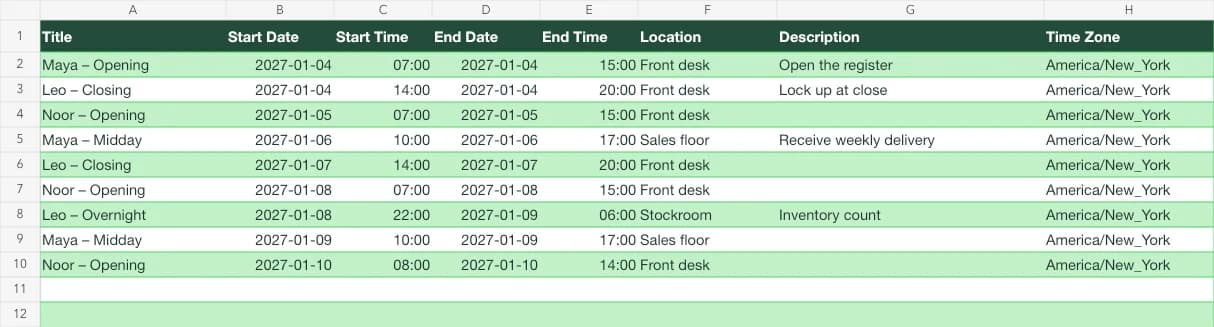
The example covers nine shifts for three employees. It shows two people covering Monday, a shorter Sunday shift, and an overnight stockroom assignment. Follow the example to see where dates, locations, and handoff notes go. Replace the sample rows with your own assignments if you use it as a starting point.
How to use the employee schedule template in Excel
Name and date each shift
Enter the employee name and assignment in Title, such as “Maya – Opening.” Add a Start Date, Start Time, and End Time. For a shift that ends the same day, leave End Date blank or repeat the start date. Leave days off out of the workbook so they don’t become calendar events.
Check coverage and handoffs
Sort by date and start time. Look for gaps around opening and closing, and check whether overlapping shifts have the coverage you intended. Put the branch, desk, or work area in Location. Use Description for a note the employee needs at the shift, such as who has the keys at opening.
Review before sharing
Save the workbook as an .xlsx file, open it in the converter, and confirm it picked Weekly shifts and header row 1. Check the time zone, the first shift, and any overnight entries. Fix marked rows in Excel and reopen the file, or uncheck rows you want to leave out before exporting.
How do I add an Excel employee schedule to Google Calendar?
Fill out the weekly employee schedule template for Excel. Open the saved workbook in Image to Calendar, review the dates and time zone, and download your selected shifts as an ICS file. On a computer, open Google Calendar and go to Settings → Import & export. Select your ICS file, choose the calendar that should receive the shifts, then click Import.
For a team roster, use a dedicated work calendar so you can check the week before sharing. Spot-check the first shift and any shift that ends after midnight. If you need to replace the file, remove the earlier events before importing the corrected version. You can also preview your ICS file and see the manual import steps in a new tab.
Google Calendar’s file import instructions (new tab)Employee schedule template FAQs
Where can I download a free employee schedule template for Excel?
Use Download blank Excel at the top of this page to get an editable .xlsx workbook. The filled example is also free and shows how dates and shift times should look. You can download either workbook and convert your shifts here without creating an account.
How do I enter an overnight shift in the Excel schedule?
Use the date the employee starts in Start Date and the next calendar date in End Date. For a Friday 10:00 p.m. to Saturday 6:00 a.m. shift, enter both dates and both times on one row. In the calendar preview, confirm the shift ends Saturday morning before you download it.
How can I send each employee only their own shifts?
Open the finished Excel schedule, then leave only that employee’s shifts selected in the converter. The converter reads rows hidden by Excel filters, so check the selection here, including any additional preview pages. Download an ICS file for that employee and review the locations and notes before sharing it.
How do I reuse the same employee schedule template next week?
Save a copy of the Excel workbook for the new week. Update each start date and any explicit end dates, then review assignments that change. Pay special attention to Sunday night shifts that run into Monday. Keep the original workbook as a record of the week you shared, and give the new file a name with the new week’s start date.
What if employees work in different time zones?
Write each shift in the local time of the work site. For a single site, change Default time zone from UTC to the site’s time zone. For multiple sites, use the workbook’s Time Zone column to specify each shift’s zone, such as America/Chicago. A zone entered on a row takes precedence over the default.
Will an Excel edit update shifts I already imported?
Each ICS download is a copy of the shifts at the time you export it. For a single change, edit that event in the calendar and update the workbook. If most of the week changes, remove the earlier import before adding the revised file so the team doesn’t see both copies.
When should I use a rotating shift calendar?
Use the Excel schedule when assignments vary by person or week. If the same crew follows a repeating pattern, such as four days on and four days off, generate the dates with the rotating shift calendar. You can then adjust individual dates for one-off swaps.