ICS to JPG Converter
Turn your calendar into a picture you can share. Choose a file, check your schedule on this page, and download a clear JPG image.
JPG preview
Creating the image on your device…
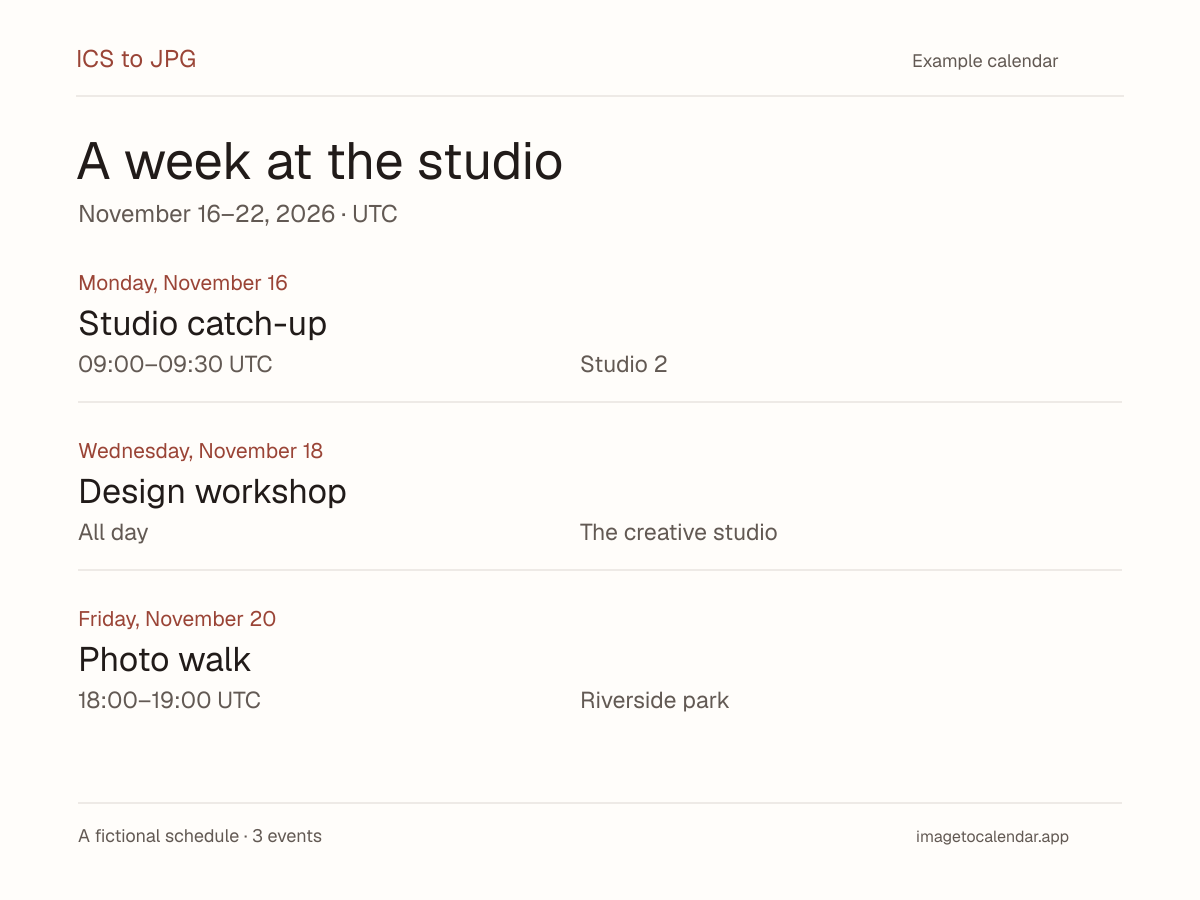
View events as text (3)
A week at the studio
- Studio catch-upNov 16, 2026 · 09:00 - 09:30 · UTCStudio 2
- Design workshopNov 18, 2026 · All dayThe creative studio
- Photo walkNov 20, 2026 · 18:00 - 19:00 · UTCRiverside park
One .ics or .ical file · Up to 2 MB · 1200 px wide · Free, with local processing. Download before leaving this page; your work is not saved.
How to convert ICS to JPG
- 1. Choose your calendar
Open an ICS export from Google Calendar, Outlook, Apple Calendar or another calendar app. Start with the first event’s month in your display time zone, or choose fewer dates for a busy schedule.
- 2. Frame your schedule
Pick a date range and time zone. Keep locations and notes when they help, or hide them for a simpler picture. Select Preview JPG after a change.
- 3. Check and download
Open the full-size image to inspect its text, then select Download JPG. The downloaded image is the same file shown in your preview.
See the result before choosing a file
The working example turns three fictional events into one readable picture: a Studio catch-up on November 16, 2026, from 09:00 to 09:30 UTC; an all-day Design workshop on November 18; and a Photo walk on November 20 from 18:00 to 19:00 UTC.
Change UTC to your own time zone and select Preview JPG to see the timed events move. The all-day workshop keeps its date. Download the example to check the image on your phone or in a document before using your own calendar.
Try example temporarily keeps your file and settings in this page’s memory. Restore your file brings them back and creates a fresh preview. Clear calendar removes both copies.
A calendar image that is easy to share
An ICS file holds structured event data. A JPG makes those plans readable in a group chat, a slide, a handout or a document without asking the recipient to import a calendar. This ICS to JPG converter lays out the events as a dated agenda, with a white background and enough room for wrapped titles.
Keep the useful details
The image includes the calendar name, selected dates, event titles and times. Locations and event notes are optional. Events that overlap your selected range appear once with their complete span, including overnight plans and all-day events. Repeating meetings appear on the dates they occur.
Choose an image or a printable document
JPG works well when you want one picture to attach or share. Its text becomes pixels, so it is not selectable or editable. For a long schedule with separate pages, use ICS to PDF. For rows you can analyze or edit in a spreadsheet, use ICS to CSV or Excel.
Check dates before sharing
Show the right slice of your calendar
Both selected dates are included. The converter filters timed events after applying the display time zone. A late-night event may appear on the previous or next date in a different zone. All-day dates and times with no zone stay as written. Read any schedule notes before downloading.
Give longer schedules room to breathe
The image stays 1200 pixels wide and grows vertically. Short ranges work better in a message or on a phone. If the schedule is too tall, contains too much text or exceeds the event limit, conversion stops and explains how to reduce it. It never offers a clipped JPG as a complete result.
Use a fresh calendar export
The converter reads one file snapshot. It does not subscribe to live feeds or update an image after you download it. If a meeting changes, export your calendar again and create a new JPG. Check a damaged file with the ICS Validator, or review its events in the ICS Viewer.
Your file stays in your browser
Choosing a file lets this page read it on your device. Parsing, event filtering, previewing and JPG generation happen locally. Your filename and calendar contents are not uploaded to our server, sent to an AI provider or saved in browser storage. No calendar account connection is needed.
Organizer and attendee fields, reminders and attachments are excluded. Titles, locations and event notes may still contain private details, so review the picture before sharing it. Hide optional details when needed. Calendar links and HTML in descriptions are displayed as plain text and are not executed.
Clear calendar removes your file, generated image and temporary example backup. Leaving, refreshing or closing this page clears your work. Download the JPG before following a link to another tool. General website analytics are described in our privacy policy.
ICS to JPG questions
How do I convert ICS to JPG?
Select Choose ICS file, or drop one .ics or .ical file onto the file bar. The tool opens the first event’s month in your selected display time zone. If that month fits in one image, a JPG preview appears automatically. For a busy calendar, choose fewer dates and select Preview JPG. Select Download JPG to save the same image you see in the preview. Unzip calendar ZIP exports first.
Is this ICS to JPG converter free?
Yes. You can choose a file, preview the image and download the JPG without an account, AI credits or a payment. The built-in fictional example also works, so you can check the result before opening your own calendar.
Is my ICS file uploaded to a server?
No. Choosing a file lets this page read it on your device. Calendar parsing, date filtering, previews and JPG generation happen in your browser. Your calendar contents and filename are not sent to our server or an AI provider and are not saved in browser storage. Clear calendar removes your current file, preview and example backup. Leaving, refreshing or closing this page clears your work, so download the JPG before you leave.
What does the calendar image look like?
The result is a 1200-pixel-wide JPG with a white background, a calendar title, the selected date range, and events grouped by start date. Titles, times and optional locations and notes wrap onto new lines. The height fits your schedule, up to 16,000 pixels. This is a chronological agenda rather than a monthly calendar grid. Open full-size image lets you inspect it at its original resolution.
Does it support repeating events, all-day dates and time zones?
Common daily, weekly, monthly and yearly repeats appear on their actual dates. Skipped dates are left out, and a changed meeting replaces its original occurrence. All-day and overnight events show their full date spans. Time zone conversion follows daylight saving on the event’s date. Times without a zone stay as written; unrecognized zones keep their original labels, with a note in the preview. Some advanced repeating schedules, including changes to all future meetings in a series, need a simpler export from your calendar app.
Can I use Google Calendar, Outlook or Apple Calendar files?
Yes. Choose a standard ICS export containing events. If the export arrives as a ZIP, extract it and choose one ICS file. This tool reads that snapshot without connecting to your calendar account. Later changes in the source calendar will not update your downloaded image, and the JPG cannot be imported back as editable calendar events.
What are the file and image limits?
Choose one .ics or .ical file up to 2 MB with no more than 5,000 source event records. Your selected range may cover up to 366 days between 1900 and 2100, with a maximum of 200 displayed occurrences. One image may contain up to 100,000 characters and be up to 16,000 pixels tall. Processing also has a time limit. If the full result cannot fit, conversion stops with a message rather than silently cutting off events. Shorten the range, hide event notes, or use ICS to PDF for a longer schedule.
Why is Download JPG disabled or my preview empty?
After changing a setting, select Preview JPG before downloading. Download is also disabled while processing or when the selected dates have no events. If the image is too large, your calendar stays open: choose fewer dates or hide event notes, then preview again. An unreadable file leaves the previous calendar in place. Try example temporarily keeps your file and settings; Restore your file brings them back. These temporary copies last only while you stay on this page.
Can I convert ICS to JPEG or PNG?
JPG and JPEG are names for the same image format; this converter downloads a .jpg file. PNG export is not available here. For a visual month grid without creating an image, use the ICS Viewer. For a multipage document with printable pages, use ICS to PDF.
What should I check before sharing the JPG?
Review the full-size image and date range. Organizer and attendee fields, attachments and reminders are left out, but event titles, locations and notes may still include private details or meeting links. Hide locations or event notes when you do not want them in the picture. The image is a static snapshot: it cannot trigger reminders, invite attendees or stay synchronized with your calendar.