Upload the rota or roster
Choose a readable schedule that includes the relevant week and timezone.
Turn a weekly rota, shift roster, or work schedule into calendar events without retyping every start and end time. Review overnight shifts and changes before export.
Checking available credits…
Variable schedules work best as individual events rather than one assumed weekly pattern.
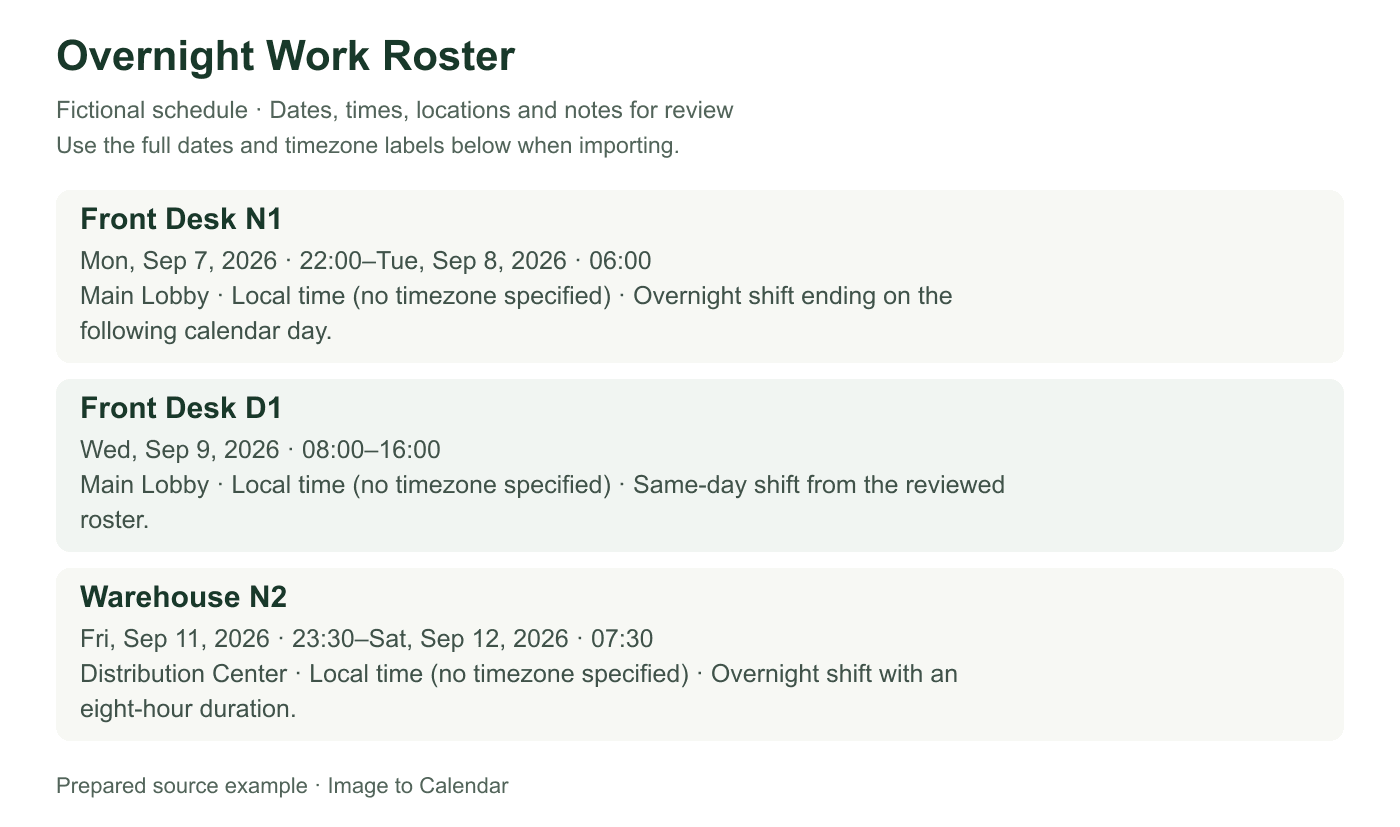
These fictional source schedules and event previews match the prepared reference ICS below. A new AI conversion may need corrections.
Readable source example
Verifiable example
The critical review point is the calendar date on which an overnight shift ends. A rota or roster may also show versions and swaps that should not be converted into an endless recurrence.
| Roster row | Start | End | Calendar result | Check |
|---|---|---|---|---|
| N1 · Front desk | Mon Sep 7 · 10:00 PM | Tue Sep 8 · 6:00 AM | One event crossing midnight | End date is the following day |
| D1 · Front desk | Wed Sep 9 · 8:00 AM | Wed Sep 9 · 4:00 PM | One same-day event | Timezone and location match |
| N2 · Warehouse | Fri Sep 11 · 11:30 PM | Sat Sep 12 · 7:30 AM | One event crossing midnight | Duration is eight hours |
| Source wording | Meaning to verify | Calendar action |
|---|---|---|
| Rota / roster | Published work assignment for a defined period | Import only the employee row and version you need |
| Rotating pattern | May change across a multi-week cycle | Use explicit shifts unless the repeat rule is published |
| Swap approved | Two assignments changed after publication | Edit both affected events; keep the original hours elsewhere unchanged |
| Draft | Not yet the official schedule | Do not import until the version is confirmed |
Choose a readable schedule that includes the relevant week and timezone.
Confirm start and end dates, especially for work that continues past midnight.
Download the reviewed shifts as an ICS snapshot for your calendar.
A roster can change after it is published, and an imported ICS file does not update itself.
Make sure a shift ending after midnight uses the following calendar date.
Rotating or irregular shifts should remain separate events unless the pattern is certain.
If the roster changes, update the affected calendar events or create a fresh reviewed export.
Rota and roster formats are designed for a whole team, while your calendar needs only the shifts that apply to you. Careful filtering and date review are essential before importing a published schedule.
Confirm the roster’s week-start date, timezone, department, and version before extracting shifts. Many schedules reuse the same weekday grid every week, so a Monday column without the date can easily be attached to the wrong period. If the source lists several employees, crop to your row when possible while retaining the date headers and shift legend. This improves clarity and avoids sending unrelated names in the upload.
Check codes such as E, L, N, OFF, or AL against the employer’s legend. A code may describe an early, late, or night shift, annual leave, training, or an on-call period rather than an ordinary timed event. Translate only what the source establishes. Keep the site, team, role, or department in the title or location when it helps distinguish shifts across multiple workplaces.
An overnight shift that starts at 10:00 PM on Friday and ends at 6:00 AM belongs to two calendar dates. Verify that the end date is Saturday rather than Friday; otherwise the duration may become negative or the event may appear eight hours too early. The same check applies to split shifts, on-call periods, and work that runs past midnight because of closing duties or travel.
Use the timezone shown by the employer or the physical work location. Remote work and travel rosters can list times in headquarters time rather than the employee’s current device timezone. Around daylight-saving transitions, compare the intended local start with the imported display. Breaks are usually part of the shift description rather than separate calendar events unless you genuinely need an independent reminder.
A sequence that looks weekly may be part of a two-week, four-week, or irregular rotation. Keep published shifts as individual events unless the source clearly guarantees a stable repeat pattern. Individual events are easier to correct when a manager swaps a day or changes one start time. If you use recurrence, set the exact weekdays, interval, and end date covered by the approved rota instead of allowing it to continue indefinitely.
Separate different locations or shift types when they need distinct notes, travel plans, or alerts. You can edit every extracted event before download, so correct titles such as Work shift into something useful like Store opening or Night support when appropriate. Avoid copying confidential operational details into a personal calendar unless your organization permits it, especially if that calendar syncs to unmanaged devices.
Download and import the ICS only after checking every shift boundary. A dedicated work calendar makes the batch easy to hide and helps prevent personal appointments from being removed during cleanup. Import once, then inspect the first shift, an overnight shift, and the last shift in the published period. Confirm location, timezone, start date, end date, and any alert settings you add in the destination calendar.
The imported file is not an automatic rota sync. A newly published schedule, shift exchange, sickness cover, or cancelled day will not change existing events. Update small revisions manually; for a replacement roster, compare versions and remove obsolete events before importing a new reviewed batch. Uploaded schedules and extracted content are not written to permanent storage by this app, but you should still minimize unrelated employee information in the source.
After import, configure alerts in the destination calendar according to your commute, preparation, and sleep needs. Those settings are personal and should not be guessed from the roster. An early shift may need a reminder the previous evening, while an on-call period may need different notifications. Keep the official shift boundary unchanged and add travel or preparation blocks separately so the published schedule remains easy to compare with future revisions.
Consider which devices, household members, or shared calendars can see the destination. A rota may reveal workplace locations and regular absences from home even when it contains no sensitive operational notes. Use a private calendar where appropriate, follow employer policy, and avoid importing other employees’ rows. The converter can reduce retyping, but it should not broaden access to the underlying schedule or replace the organization’s official channel for changes.
Nothing is sent to your calendar until you have checked the extracted result.
Yes. Work schedule, shift roster, and rota images or PDFs use the same review-and-export flow.
Yes, but you should confirm that the end date is the following day before downloading the ICS file.
No. The downloaded file is a one-time snapshot, so later schedule changes require manual edits or a new conversion.
Uploaded schedules and extracted event content are not written to permanent storage by this app.