Upload the screenshot
Choose the clearest version of the schedule from your phone or computer.
Upload a schedule screenshot from your phone or computer. Extract the visible dates, times, locations, and repeat details, then edit every event before downloading an ICS file.
Checking available credits…
The image is only the starting point. The extracted event fields stay editable until you choose what to export.
These fictional source schedules and event previews match the prepared reference ICS below. A new AI conversion may need corrections.
Readable source example
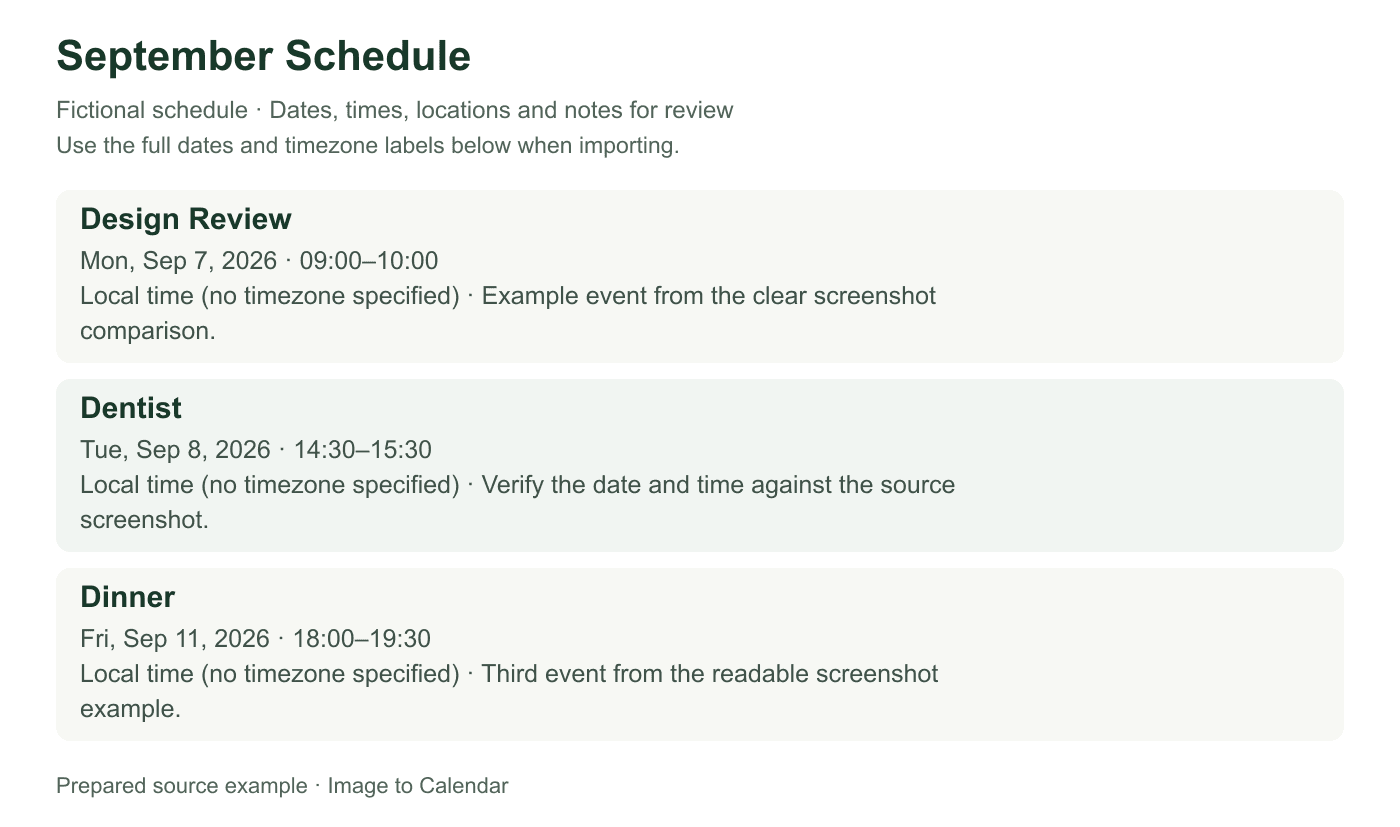
Verifiable example
Use the same schedule at two quality levels to see which details remain verifiable before extraction. The blurred example is deliberately simulated; it demonstrates review risk rather than a claimed accuracy score.
| Signal | Clear source | Risky source | Action |
|---|---|---|---|
| Date context | Month, year, and weekdays visible | Only event rows remain | Retake with the header included |
| Time text | Digits and AM/PM are distinct | Small digits merge after compression | Zoom in or use the original capture |
| Crop | Every row has both edges | End times or locations are cut off | Expand the crop without adding private notifications |
| Row separation | Each event has a clear boundary | Overlapping cards or chat bubbles | Capture smaller groups of events |
Choose the clearest version of the schedule from your phone or computer.
Correct cropped dates, ambiguous times, timezones, locations, or repeat rules.
Export only the selected events and import the file into your calendar app.
A clean capture reduces ambiguity before extraction begins.
Include the month, year, weekday labels, and any timezone shown around the schedule.
Capture the schedule at a readable zoom instead of fitting a long page into one narrow screenshot.
Make sure start times, end times, and locations are not cut off by the screen boundary.
A screenshot is convenient because it preserves what you can see, but it can also hide the context that a calendar event needs. These checks help you turn a visual capture into dependable, editable event data.
Start with the original capture whenever possible instead of an image that has been repeatedly shared or compressed. A screenshot should show the schedule title, the month or date range, weekday labels, start and end times, and any note that explains the timezone. If the source is a long chat, portal, or booking page, take several clear captures rather than shrinking everything into one image with unreadably small text.
Crop away unrelated notifications and surrounding interface, but do not crop so tightly that the year, date header, AM or PM marker, or location disappears. A phone status bar is usually harmless; missing schedule context is not. Before uploading, zoom in and confirm that similar characters such as 1 and 7, 5 and 6, or 8 and 9 remain distinct. Clear boundaries between rows also make multi-event screenshots easier to review.
Screenshots often rely on context outside an individual row. A list may say Tuesday without showing the date on every event, or display 9:00 without saying whether it is morning or evening. The converter can organize the visible information, but the review step is where you should confirm the missing assumptions. Compare every extracted event with the month header, surrounding rows, and the calendar convention used by the source.
Pay particular attention to numeric dates. A value such as 04/05 can mean April 5 or May 4 depending on locale, and a screenshot may not reveal the convention. Also check timezone abbreviations, daylight-saving transitions, and events shown in a travel destination’s local time. If an end time is absent, add one only when the source or your own schedule makes it clear; otherwise keep the event conservative and document the uncertainty in its notes.
A screenshot may show several dates that look like a weekly pattern, but similar rows do not always mean the event repeats forever. Confirm whether the source describes a true recurrence, a fixed series, or separate appointments. For a class or training block, set the correct weekdays and an until date. For a short series, keeping individual events can be safer than creating an open-ended rule that continues beyond the schedule shown.
Events that cross midnight need both the correct start date and the following end date. Multi-day conferences, trips, and deadlines may instead be all-day events that span several dates. Review these distinctions before download because calendar apps interpret them differently. The editable result lets you correct titles, date boundaries, locations, notes, and repeat rules without altering the original screenshot or starting the extraction again.
Use the selection controls to exclude duplicate, irrelevant, or uncertain rows before creating the ICS file. Give the exported calendar a recognizable name, especially when you are testing the import in a separate calendar. After importing, open a few representative events: one normal timed event, one recurring event, and any overnight or all-day item. This spot check catches destination-calendar differences while the source screenshot is still available for comparison.
An ICS download is a one-time snapshot, not a live connection to the screenshot or the page it came from. Later source changes will not update imported events automatically. Keep the source long enough to verify the import, then handle it according to your own privacy needs. The uploaded screenshot is processed for the request and is not permanently stored by this app, but you should still avoid including unrelated personal notifications when a cleaner crop is available.
A screenshot is ideal when the schedule exists only inside an app, message, booking confirmation, or web portal that offers no calendar export. It is less useful when the original source already provides an ICS download, a subscribed calendar, or a clean PDF. Prefer an official calendar feed when you need automatic updates, and prefer the original PDF when a screenshot has reduced the page to tiny text. The converter remains useful when no structured option exists or when you want to review a source before importing it.
For a long schedule, divide the source into logical captures with a small amount of overlapping context, then watch for duplicate events during review. Keep each screenshot focused on one date range or section instead of mixing several unrelated schedules. If you are converting information for another person, confirm that you are permitted to handle it and give them the reviewed event details rather than the unedited source when possible. Calendar data can reveal routines, so accuracy and privacy both matter beyond the extraction itself.
Nothing is sent to your calendar until you have checked the extracted result.
Yes. Upload a JPG, PNG, or WebP screenshot, review the extracted fields, and download the selected events as one ICS file.
Yes. A single conversion can return multiple editable events, up to the product limit of 100 events.
The converter may flag uncertain details, but you should restore the missing context or edit the date before exporting.
No. The file is processed in server request memory and is not written to permanent storage by this app.