Upload the PDF
Choose a document no larger than 12 MiB with no more than 10 pages.
Upload a schedule, agenda, or timetable PDF. Review events from every processed page, correct uncertain details, and export the selected events in one portable calendar file.
Checking available credits…
Prefer to enter event details yourself? Use the free ICS File Generator →
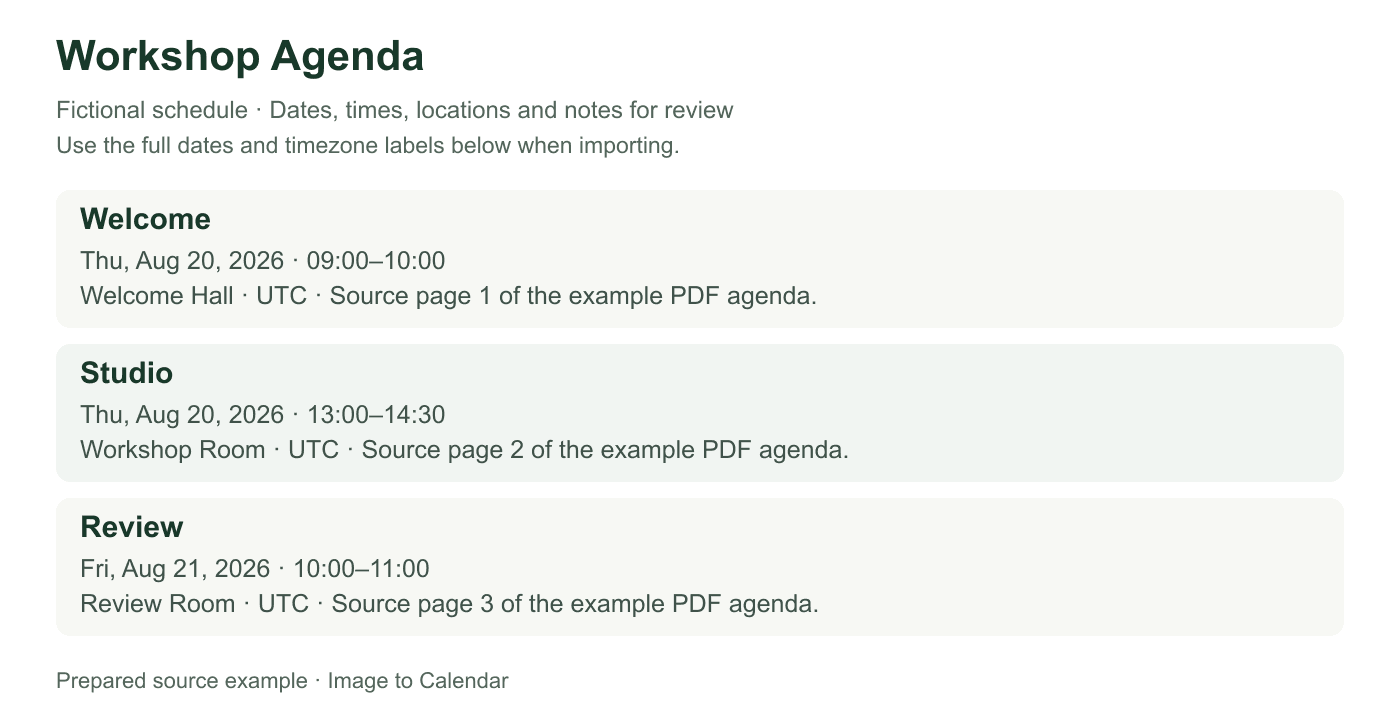
Compare this fictional three-page PDF with its matching reference ICS below. All dates are in 2026 and all times are UTC. These are prepared examples, not a live AI extraction result.
Readable source example
Verifiable example
A PDF container does not guarantee readable text. Compare the source type first, then use page references to trace each extracted event back to the document.
| Check | Digital text PDF | Scanned PDF | Review decision |
|---|---|---|---|
| Text layer | Text can usually be selected | Each page is an image | Do not assume selectable text means the table order is correct |
| Visual quality | Sharp at high zoom | May be skewed, faint, or shadowed | Replace unreadable scans before conversion |
| Table structure | Columns may extract out of reading order | Lines and cells may merge visually | Compare dates and titles against the rendered page |
| Best use | Published agendas and timetables | Paper schedules saved as a PDF | Keep legends and timezone notes in the batch |
| Source page | Visible source | Extracted event | Verification |
|---|---|---|---|
| 1 | Workshop agenda | Welcome · Aug 20, 2026 · 09:00–10:00 UTC | Welcome Hall; title and time match page 1 |
| 2 | Afternoon sessions | Studio · Aug 20, 2026 · 13:00–14:30 UTC | Workshop Room; location matches page 2 |
| 3 | Closing program | Review · Aug 21, 2026 · 10:00–11:00 UTC | Review Room; date matches page 3 |
Choose a document no larger than 12 MiB with no more than 10 pages.
Use source-page details and confidence warnings to review each extracted event.
Select the events you want and download them together as one ICS file.
Review and download the ICS first: these calendar apps import the calendar file, not the original PDF. Choose your app below.
Import once into a separate calendar and check an event from each PDF page. Calendar apps may display UTC events in your local timezone. If you use our sample, look at August 20–21, 2026.
An imported ICS is a snapshot: later PDF changes will not sync automatically. Before importing a revised file, review or remove the old batch to avoid duplicate events.
The converter reads visible document content; it does not follow links or attachments inside the PDF.
Clear digital text or high-quality scans work better than faint, skewed, or heavily compressed pages.
Keep the page that explains abbreviations, terms, timezones, or recurring-week patterns.
Check events whose titles and dates are split across pages or columns before export.
Use Image to Calendar to extract events from a PDF schedule, review the details, and download one ICS file. Import the reviewed file into Google Calendar on a computer, Apple Calendar on Mac, or Outlook on the web. You can try one conversion without an account.
PDFs can be up to 12 MiB and contain up to 10 pages, with up to 100 events returned from one conversion. The converter also accepts JPG, PNG, and WebP images up to 10 MiB.
Digital PDFs and readable scans are supported. Replace blurred or cropped pages with a clearer copy, and keep any page that explains date ranges, timezones, or timetable codes. Selectable text is not required.
Review the extracted events together. Use available source-page references to compare uncertain details with the PDF, especially when sessions share a title or a table continues on another page.
Check rows split across pages or columns, and remove repeated headers or duplicate entries before export. Preserve track names and room details so parallel sessions remain distinguishable. Select only the events you want to add to your calendar.
Confirm the year, date format, start and end times, and timezone before downloading. If a detail is missing, check the source rather than accepting a guessed value. A date without a time may represent an all-day deadline.
For weekly classes or meetings, review the weekdays and the final repeat date. Keep the timetable legend nearby when interpreting abbreviations or alternating weeks. Use separate events when the printed schedule does not fit a regular repeat pattern.
Download the selected events as one ICS file, then follow the import walkthroughs above. Google Calendar imports ICS files on a computer; Apple Calendar supports file import on Mac, and Outlook supports ICS import on the web.
Import into a separate calendar first and check events from different PDF pages. If you prefer to enter event details manually, create an ICS file with the generator.
For documents exceeding 10 pages, create smaller PDFs by day, date range, or track. Keep the relevant year, timezone, and legend in each batch, then review and import each file separately.
An imported ICS file is a snapshot. Later changes to the PDF will not update the imported events automatically. Compare revisions and edit the affected events, or remove the old batch before importing its replacement to avoid duplicates.
Nothing is sent to your calendar until you have checked the extracted result.
A PDF can be up to 12 MiB and contain up to 10 pages.
Yes. Events extracted from the processed pages can be reviewed together and downloaded in one ICS file.
No. The service can read visible schedule details from digital PDFs and scans, although clear text improves the result.
No. Uploaded bytes are handled in request memory and are not written to permanent file storage by this app.