Upload your schedule
Choose a clear photo, screenshot, or PDF. Include the heading and date area so the year, times, and timezone are not cut off.
Have a schedule trapped in a photo, screenshot, or PDF? Upload it, check the events we find, and download one calendar file (.ics) that you can add to your usual calendar app.
Checking available credits…
Prefer to enter event details yourself? Use the free ICS File Generator →
You stay in control of what gets added. Fix a title, date, time, or location, remove anything you do not need, and download only the events that look right.
These fictional source schedules and event previews match the prepared reference ICS below. A new AI conversion may need corrections.
Readable source example
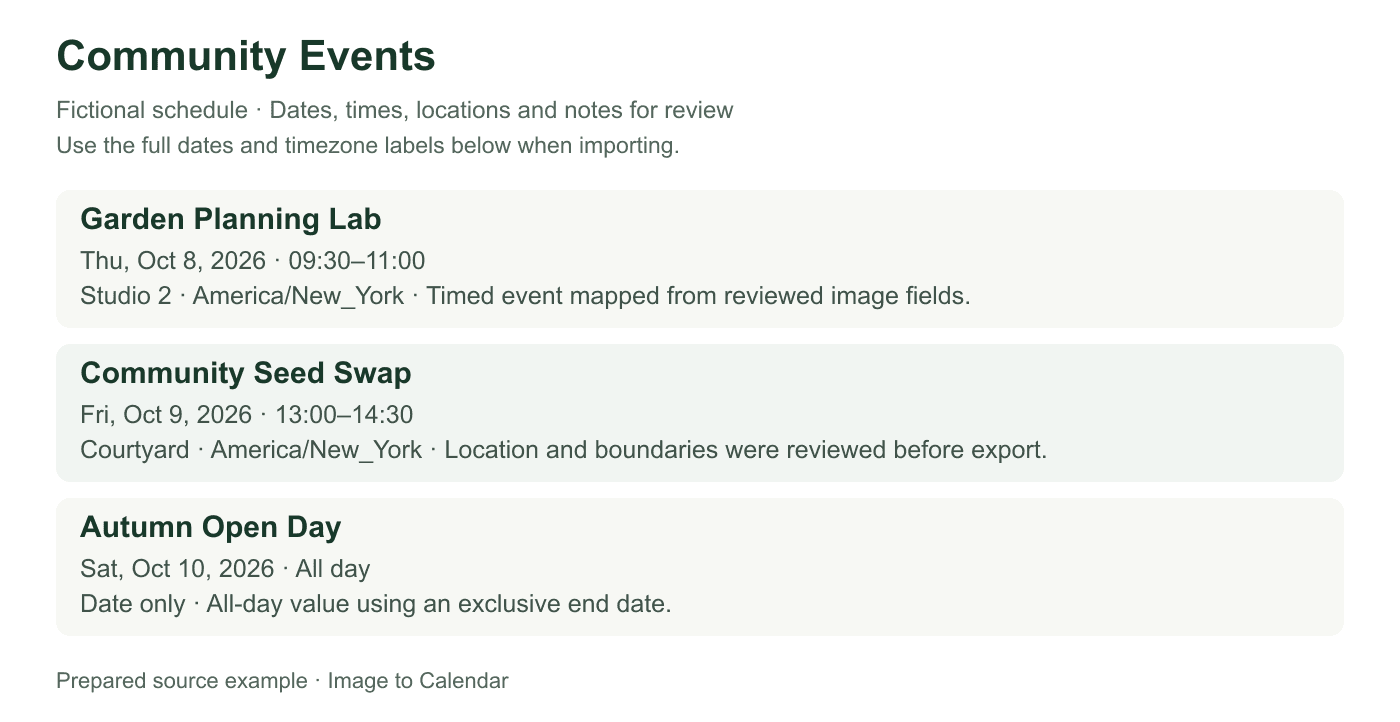
Verifiable example
You review familiar event details such as the title, time, and location. This table shows where those details go inside the .ics file and what is worth checking before import.
| What you review | Saved as | Example | What to check |
|---|---|---|---|
| Event title | SUMMARY | Garden Planning Lab | Readable and specific in a calendar grid |
| Timed boundary | DTSTART / DTEND | 09:30–11:00 | End follows start in the named timezone |
| Venue | LOCATION | Studio 2 | Contains the attendance location, not organizer details |
| Repeat pattern | RRULE | Not used in this sample | Add only when the visual source publishes a real series |
| Check | Question | What could go wrong | What to do |
|---|---|---|---|
| File | Can a calendar app open it? | The download is incomplete | Open the sample or a small test export |
| Details | Do the events match the image? | A wrong date, timezone, or title | Compare every selected event in review |
| Calendar | Do the events look right after import? | Different reminders or repeat behavior | Import into a spare calendar first |
Platform details checked against IETF RFC 5545: Internet Calendaring and Scheduling Core Object Specification.
Choose a clear photo, screenshot, or PDF. Include the heading and date area so the year, times, and timezone are not cut off.
Review the event names, dates, times, locations, notes, and repeats. Edit anything uncertain and deselect anything you do not want.
Download one .ics file, open it with Google Calendar, Apple Calendar, Outlook, or another compatible app, and choose where the events belong.
The image helps us find the details, but your calendar receives the events you approve. A short review now prevents confusing reminders and duplicates later.
Check the year and the order of month and day, especially when the image uses a short date such as 04/05.
Make sure AM or PM, the timezone, and events that finish after midnight all match the schedule.
Remove promotional dates, unclear rows, or events you will not attend before you download the file.
The useful part is not the file format itself. It is getting clean, accurate events into your calendar without typing every line by hand or importing details you did not mean to keep.
A poster or timetable can use large headings, small print, color, and nearby labels to explain an event. A calendar has simpler boxes: a name, start and end, location, and notes. During review, make sure the main event name has not been mixed with a sponsor line, price, room label, or decorative slogan. A clear title such as “Garden Planning Lab” is much easier to scan next week than a long block of copied poster text.
Put each detail where you would expect to find it later. Keep the venue in the location field, useful arrival or registration instructions in notes, and the actual attendance time in the date and time fields. You do not need to learn how an ICS file stores those details—the converter handles that part. You only need to decide whether the finished event will still make sense when the original image is no longer in front of you.
A time can look correct and still end up on the wrong day. Check whether the source uses AM or PM, whether an evening event finishes after midnight, and whether an online session is shown in your timezone or the organizer’s. If the image does not say which timezone applies, use the event location or official page to confirm it instead of guessing. A two-hour shift is easy to miss in a list and very noticeable when the reminder arrives.
Treat all-day dates differently from timed appointments. A holiday, registration deadline, or festival day should not appear as a midnight meeting unless the source actually gives that time. For a date range such as October 10–12, confirm that every intended day is included after import. If the schedule crosses a daylight-saving change, open the first and last event in the destination calendar and make sure both still show the advertised local time.
Repeating events are convenient when the image clearly describes a pattern such as every Monday, the first Friday of each month, or daily for one week. Similar-looking rows are not always a series. Workshops with different speakers, rooms, or start times are usually easier to manage as separate events. Before combining anything, compare the titles, dates, locations, and any exceptions printed near the schedule.
Every repeat needs an ending. A class that runs for one term should not continue appearing forever, and a weekly meeting may skip holidays or cancelled dates. Confirm the first event, the repeat pattern, and the final date before downloading. After import, jump ahead to the last expected occurrence and check it again. If the source lists many exceptions, separate events may be clearer and less likely to leave unwanted reminders behind.
When an image contains many events, try the first download in a temporary or separate calendar. Open one normal appointment, one all-day item, and one repeating event if the file has them. Compare the title, date, duration, location, and notes with the source image. This takes only a minute and lets you remove the whole test calendar cleanly if something needs another pass.
Keep the image nearby while you check. If an event is wrong, return to the review screen, correct it, and create a new file. Avoid importing the same version again just to see whether it changes; calendar apps commonly treat another import as another batch and can create duplicates. Once the test looks right, add the reviewed file to the calendar you actually use.
An .ics file works with many calendar apps, but each app can display reminders, notes, colors, guests, and repeating events a little differently. The important event details should carry across, while the final look and default alerts come from the calendar you import into. Check a few events after import and adjust the calendar’s own reminder settings if you want a different notification time.
The downloaded file is a one-time copy of what was visible when you created it. If a room changes, a class is cancelled, or a conference publishes a new program, the events already in your calendar will not update by themselves. Edit a small change directly, or compare a revised schedule carefully before replacing a larger batch. If the organizer offers an official calendar subscription and live updates matter, use that instead.
Nothing is sent to your calendar until you have checked the extracted result.
ICS is the common filename extension for an iCalendar file containing structured calendar events that compatible apps can import.
Yes. Review the extracted rows, select the events you want, and download them together in one file, up to the product limit.
No. The file is a one-time snapshot. Changes to the source image or schedule do not update imported events automatically.
No. You review familiar event details in the browser, and the converter creates the .ics file for you.