Convert the source
Upload the schedule and let the tool identify visible event details.
Convert a photo, screenshot, or PDF into editable calendar events. Download one ICS file, then use Google Calendar’s desktop import flow to add the reviewed events.
Checking available credits…
The converter does not connect to your Google account. It creates a standard file that you import into the calendar you choose.
These fictional source schedules and event previews match the prepared reference ICS below. A new AI conversion may need corrections.
Readable source example
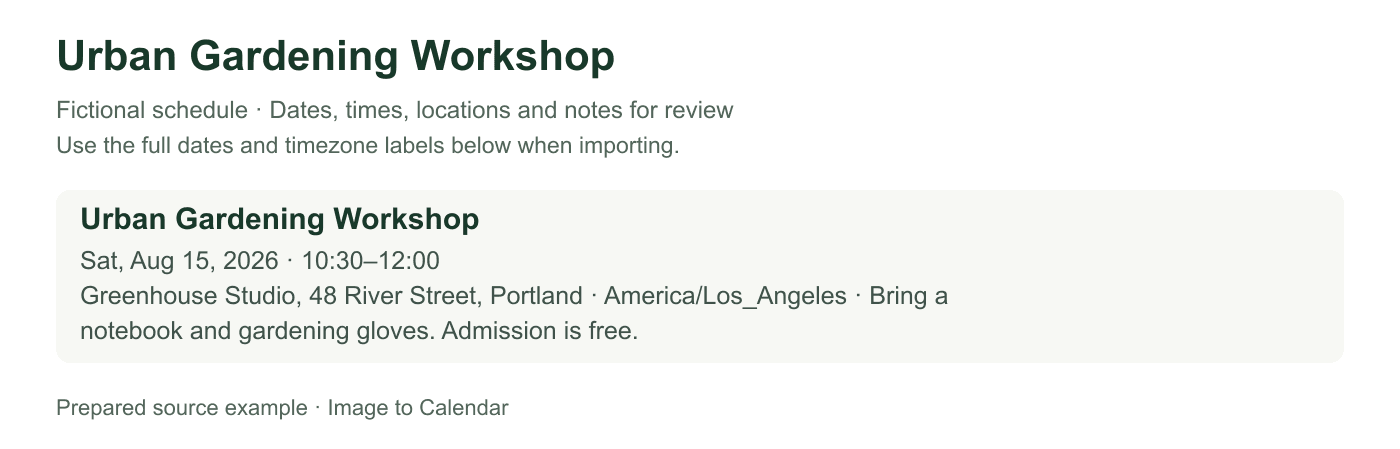
Verifiable example
The table separates fields carried by the reviewed ICS file from information Google explicitly does not import. It also shows the field a user should inspect after the upload completes.
| Reviewed value | ICS field | Expected Google Calendar result | Post-import check |
|---|---|---|---|
| Event title | SUMMARY | Event title | Open the event and compare the wording |
| Start and end | DTSTART / DTEND | Scheduled date and time | Confirm account timezone and duration |
| Location | LOCATION | Location field | Check room, venue, or online label |
| Notes | DESCRIPTION | Description | Check line breaks and source-page note |
| Repeat rule | RRULE | Not used in this single-workshop sample | Only export a series when the source publishes a repeat pattern |
| Guests / conference | Not relied on | Google says these are not imported | Add them in Google only when appropriate |
| Limit | Documented behavior | Practical response |
|---|---|---|
| Device | Import from Calendar settings on a computer | Download the ICS, then finish on desktop |
| File type | ICS and CSV are supported | Use this page's ICS sample for one reviewed workshop |
| File size | Google documents a 1 MB import limit | Split unusually large schedules into reviewed batches |
| Updates | A file import is not a live source subscription | Edit changes or replace an isolated calendar carefully |
Platform details checked against Google Calendar: Import events, Google Calendar: Fix import problems.
Upload the schedule and let the tool identify visible event details.
Check dates, timezone, locations, notes, and recurring-event settings.
Download the ICS file and complete Google Calendar’s Import & export flow.
A file import adds a snapshot of the events; it does not create an ongoing sync.
Create or select a separate calendar if you may want to remove the imported schedule later.
Google Calendar’s ICS file import is available from the desktop settings flow.
Google notes that guests and conference data are not imported from an ICS file.
The conversion and the Google import are two deliberate steps: first create trustworthy event data from the image, then decide which Google calendar should receive it.
Use a clear photo, screenshot, or PDF that shows the schedule’s date range, times, and timezone. Keep column headings and legends visible when they explain which date belongs to each row. If a phone photo is tilted or shadowed, retake it square to the page. A clean source reduces the number of ambiguous fields you need to resolve before the Google Calendar import.
The upload may contain several events, but each one remains independently editable. Compare titles, start and end dates, times, locations, notes, and repeat rules with the source. Do not treat an AI-generated result as final simply because it looks plausible. The review step is where you catch cropped AM or PM markers, numeric date formats, misspelled venues, and recurrence rules that would otherwise create many incorrect events.
Google Calendar imports an ICS file into the calendar you select. For a class term, work rota, team season, or conference, consider creating a separate calendar first. A separate destination can be hidden, recolored, shared under your own settings, or removed without mixing the imported batch with personal appointments. Give the exported file and destination calendar recognizable names so the choice is obvious in the import screen.
The import flow is available in Google Calendar settings on a computer. Open Import & export, choose the downloaded ICS file, and select the destination under Add to calendar. Importing does not require this converter to connect to your Google account. Your login, calendar list, and permissions stay inside Google Calendar; the converter only prepares the standard calendar file that you choose to upload.
The file carries the reviewed event titles, dates, times, timezone information, locations, notes, all-day status, and supported recurrence rules. Google’s file import does not recreate every feature of a native invitation. Guests and conference links are not imported as active invitations, and organizer relationships are not reconstructed. If those details matter, add them in Google Calendar after importing and confirm that you are allowed to invite the intended participants.
An ICS upload can contain many selected events at once, which is useful for schedules but also makes duplicate prevention important. Import only once, wait for Google Calendar to report completion, and inspect the destination before trying again. If you need to test a corrected file, use a temporary calendar or remove the earlier imported batch first. Repeated uploads of the same file can create separate copies rather than updating existing events.
After import, open at least one ordinary event and one recurring event. Confirm the displayed local time, duration, location, weekdays, interval, and recurrence end date. This is especially important around daylight-saving changes or when the image lists a timezone different from your Google Calendar setting. Also inspect all-day events, because an incorrect date boundary can make them appear one day early or late in another timezone.
The imported events are a one-time snapshot of the image you reviewed. They are not connected to the original flyer, timetable, or PDF and will not change when that source is updated. For a revised schedule, edit the affected Google events manually or create a new reviewed file and manage duplicates carefully. Keeping the source available until the spot check is complete gives you a reliable reference without granting the converter access to your calendar account.
ICS import works best for a defined batch of events that you want to inspect before adding: a published class term, approved work roster, conference agenda, or fixed season list. Creating a single Google Calendar event manually may be quicker for one simple appointment, while subscribing to an official calendar is better when the publisher maintains a live feed. Converting an image fills the gap when the source is visual and no trustworthy structured export is available.
After the events are in Google Calendar, you can use Google’s own controls for reminders, colors, sharing, and notifications. Those personal settings are intentionally not inferred from the image because they depend on the destination and the people using it. Add alerts that give realistic travel or preparation time, and review sharing before exposing a private work or class schedule. The converter’s job ends with accurate, reviewed event data; ongoing calendar management remains under your Google account.
The events are added only after you finish this file-import flow.
Open Google Calendar, select the gear in the top-right corner, then choose Settings. Importing an ICS file is a desktop-only flow.
In the left sidebar, choose Import & export. Under Import, select the ICS file that was just downloaded.
Use Add to calendar to choose where the events should go. Your primary calendar is selected by default.
Select Import, return to the calendar, and open one or two events to confirm their dates, timezone, and repeat rules. Guests and conference links are not carried over by Google’s file import.
Nothing is sent to your calendar until you have checked the extracted result.
No. The tool downloads an ICS file. You choose the destination calendar and complete the import in Google Calendar.
Yes. The downloaded ICS file can contain all selected events from the conversion.
No. An ICS upload is a one-time import, not a subscription or live sync.
Yes. Titles, dates, times, timezone, location, notes, and repeat rules remain editable before download.